
Upload images and convert them to multiple formats instantly in your browser.
Here's your image format converter! It runs entirely in the browser — no uploads to any server.
How to use it:
- Upload — click the drop zone or drag & drop one or more images (PNG, JPG, WEBP, BMP, GIF, etc.)
- Pick a format — choose your output: JPEG, PNG, WEBP, BMP, or GIF
- Set quality — adjust the quality slider (applies to JPEG and WEBP)
- Convert — hit the button and download each result individually
The converter shows a preview of your uploaded images, and after conversion, displays the output size, dimensions, and a size-saving badge when the new file is smaller than the original.
Convert Any Image Format - Right in Your Browser
No file uploads. No account. No software to install. Convert PNG, JPG, WEBP, HEIC, AVIF, BMP, GIF, TIFF, and ICO files instantly on your device.
4 Steps to Convert Your Image
The converter runs entirely inside your browser using the Canvas API. Your files never leave your device — all processing is local.
Step 01
Upload your image
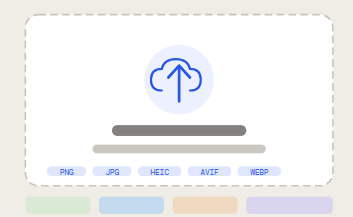
Click the upload area or drag and drop one or more image files directly onto it. Supported input formats are PNG, JPG, WEBP, HEIC, AVIF, BMP, GIF, TIFF, and ICO. You can select multiple files at once to batch-convert them all in one go.
Step 02
Pick your output format
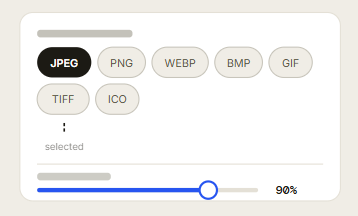
After uploading, a format selector appears below the preview. Click the format you want — JPEG, PNG, WEBP, BMP, GIF, TIFF, or ICO. The active format is highlighted in black. If you choose ICO, a size picker also appears so you can select from 16px up to 256px.
Step 03
Adjust quality (optional)
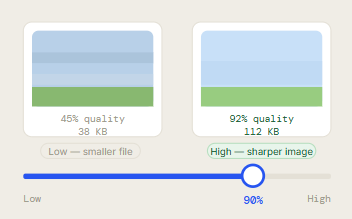
For JPEG and WEBP output, the quality slider controls the balance between file size and sharpness. A setting of 85–92% is ideal for most photos — noticeably smaller files with no visible quality difference. For PNG, TIFF, BMP, and ICO the slider has no effect since those formats are lossless.
Step 04
Convert and download
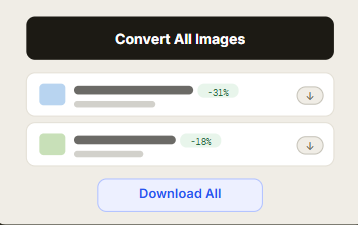
Click Convert All Images. Each file is processed and a result row appears showing a thumbnail, the output dimensions, the new file size, and a green badge when the file is smaller than the original. Download files individually or click Download All to save the entire batch at once.
Your files never leave your device. The converter uses the browser's Canvas API to process images locally. No data is sent to any server. You can disconnect from the internet after the page loads and it will still work.
Supported Conversions
The tool accepts 9 input formats and converts to 7 output formats. Every combination below is supported.
Supported Conversions
The tool accepts 9 input formats and converts to 7 output formats. Every combination below is supported.
PNG
→
WEBP
Smaller web images
PNG
→
JPG
Universal compatibility
PNG
→
ICO
Favicon & app icons
PNG
→
TIFF
Print-quality archival
JPG
→
PNG
Add transparency
JPG
→
WEBP
Faster page loads
JPG
→
TIFF
Print-ready output
JPG
→
ICO
Photo-based favicon
HEIC
→
JPG
iPhone photos → JPEG
HEIC
→
PNG
iPhone photos → PNG
HEIC
→
WEBP
iPhone photos → web
AVIF
→
JPG
Modern format → JPEG
AVIF
→
PNG
Modern format → PNG
WEBP
→
JPG
Broad compatibility
WEBP
→
PNG
Lossless with alpha
BMP
→
PNG
Compress large bitmaps
BMP
→
JPG
Reduce file size fast
GIF
→
PNG
Export static frame
TIFF
→
JPG
Share scanned docs
TIFF
→
WEBP
Optimised for web
Conversion Guides
When to Use Each Conversion
Convert PNG to WEBP
WEBP is developed by Google and delivers file sizes 25–35% smaller than PNG while preserving full transparency. Converting PNG to WEBP is the most effective single-image optimisation step for web developers. It directly improves page load times and Core Web Vitals scores. A quality setting of 80–90% gives the best balance of sharpness and file size.
Convert JPG to PNG
JPEG uses lossy compression — every time you save a JPEG it degrades slightly. Converting JPG to PNG stops that process. It is the right move when you need a transparent background, plan to edit an image and re-save it multiple times, or need a lossless copy for design work. Note that converting JPG to PNG will not recover artifacts that already exist in the file.
Convert HEIC to JPG
iPhones save photos as HEIC by default. HEIC files are roughly half the size of JPEG at similar quality, but many Windows applications, websites, and email clients cannot open them. Converting HEIC to JPG makes your iPhone photos universally compatible — for email, social media, printing, and Windows photo editors.
Convert AVIF to JPG
AVIF is a next-generation format with impressive compression but inconsistent platform support. Converting AVIF to JPG gives you a file that opens everywhere. It is also useful when sending images to clients or collaborators who may not have software that handles AVIF.
Convert PNG to ICO (Favicon)
ICO is the standard format for browser favicons and Windows application icons. Upload a square PNG — ideally 256×256 pixels or larger — select ICO, then choose your target size. Use 32×32 for a standard browser favicon, 64×64 for Retina displays, and 256×256 for Windows taskbar and desktop icons.
Convert JPG to TIFF
TIFF is the standard for professional photography, desktop publishing, and print production. If you are sending photos to a print shop or archiving in a professional workflow, TIFF is the expected format. This converter exports a lossless image with a .tiff extension, compatible with Photoshop, GIMP, Affinity Photo, and InDesign.
Convert BMP to PNG
BMP files are completely uncompressed. A single screenshot saved as BMP can be 10–20x larger than the same image as PNG. Converting BMP to PNG applies lossless compression that reduces file sizes by 60–80% with zero visible quality loss — most common when working with output from older Windows applications.
Pro Tip — Batch Converting
Upload multiple files at once by selecting them all in the file picker, or drag a group of files onto the upload area. All images are converted to the same output format with one click. Use Download All to save the entire batch at once.
Frequently Asked Questions
Is this image converter really free?
Yes. There are no fees, no watermarks, no file size limits, and no account required. The converter runs entirely in your browser using the browser's built-in Canvas API.
Are my images uploaded to a server?
No. All processing happens locally in your browser. Your files are never sent to any server or third party. You can disconnect from the internet after the page loads, and conversions will still work.
How do I convert HEIC to JPG?
Upload your HEIC file, select JPEG as the output format, and click Convert. HEIC decoding uses the heic2any library loaded from a CDN on first use, so an internet connection is required the first time. After that, it is cached and works offline.
Does converting PNG to WEBP reduce image quality?
WEBP supports both lossy and lossless compression. At a quality setting of 100%, the output is near-lossless. At 85–92%, the file size reduction is significant and the quality difference is imperceptible for most images. For images where exact pixel values matter, use 100%.
Can I convert multiple images at once?
Yes. Select multiple files in the file picker or drag a batch onto the upload area. All images are converted to the same output format in one click. Each result can be downloaded individually, or use Download All to save everything at once.
Will converting JPG to PNG make it higher quality?
No. Converting a JPEG to PNG will not recover quality lost during JPEG compression. What it does is prevent any further quality loss — PNG is lossless, so re-saving does not degrade it. If you need to edit and re-save an image multiple times, converting to PNG first is the right approach.
What size should I use when converting to ICO?
Use 32×32 for a standard browser favicon. Use 64×64 for sharp display on Retina and high-DPI screens. Windows uses 256×256 for taskbar and desktop icons. This tool creates single-size ICO files — if you need a multi-size ICO for a Windows app installer, a dedicated icon editor is more appropriate.
Which format should I use for my website?
Use WEBP for all photography and complex images — it gives the best combination of quality and file size and is supported by all modern browsers. Use PNG for logos, icons, and anything needing a transparent background. Avoid BMP and TIFF on the web as browsers do not display them. GIF can be used for short animations, though video formats like MP4 are more efficient for longer clips.